Instructions & Tips on Accessing the Underwater Videos:
First, I would like to thank
Jonathan Watson and all the
Secondly, from an underwater video recording point of view, we accomplished a first. We recorded portions of all four strokes of 105 swimmers 200 IM in just over 3 hours.
Thirdly, I would like to apologize for the quality of the videos you are about to view. Due to various factors (distance, angles, and a small technical issue) the video quality is only about 50% of what it should be. All those factors are easily corrected and will be the next time. Here is how the videos should look. http://strokeview.com/backstroke.wmv please allow 1 minute for it to load depending on you connection speed.
To access the Select Camp 2008 underwater videos on strokeview.com please click on the link below or copy and paste (or type) the following address into your Internet Browser’s address bar:
http://www.ncs.strokeview.com/videos.html
You should now see a web page with 7 different links. For Underwater Videos please choose that link and the age group you wish to see.
When you select a swimmer’s name…. You will be prompted for a username and password.
The username is nc (lowercase) and the password is swim (lowercase).
You may be prompted for a username and password several times. It is the same username and password as above.
Hint: Select “Remember my password” so you don’t have to type it each time.
If you have high speed access, each video may take 60 seconds or so to load. The bigger the size, (i.e. 10 Meg) the longer it will take to load. We have saved the videos in Windows Media Video (.wmv) format for size and compatibility. The Windows Media Player is required and is preloaded on most Windows machines. The latest version (v11.x) can be downloaded here…
http://www.microsoft.com/windows/windowsmedia/player/windowsvista/default.aspx
A Mac version is available as well.
The minimum version required is Windows Media Player (WMP) 8.
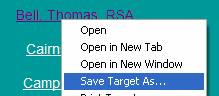
If you would rather download the videos to your local machine versus playing them on-line, right click on the swimmers name and select Save Target As (see image below). Save the file to wherever you want on your local machine and then select Open to play the video.
Windows Media Player Tips:
Once Windows Media Player is open, resize it so that it only takes up about half of your screen, preferably the right half. This will come in handy when selecting more videos.
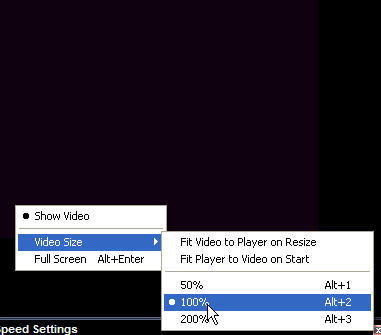
For the best quality please ensure that your Windows Media Player’s video size is set to 100%. You can make it bigger or smaller but for quality and speed purposes we record the videos in 320 x 240. To set the video player to 100%, right click in the video screen (see image below) and select Video Size and then 100%. You can also press Alt + 2 to set it to 100%.
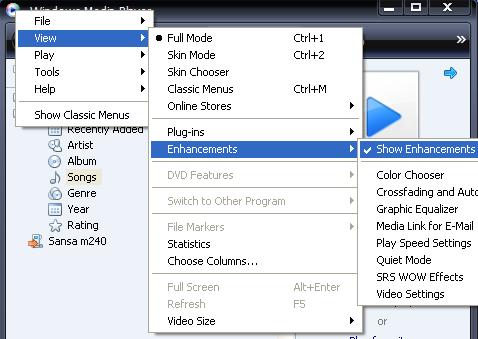
To allow for frame by frame reply in forward and reverse you will need to add the Enhanced tools in Windows Media Player. From the menu select View>Enhancements>Show Enhancements (see image below).
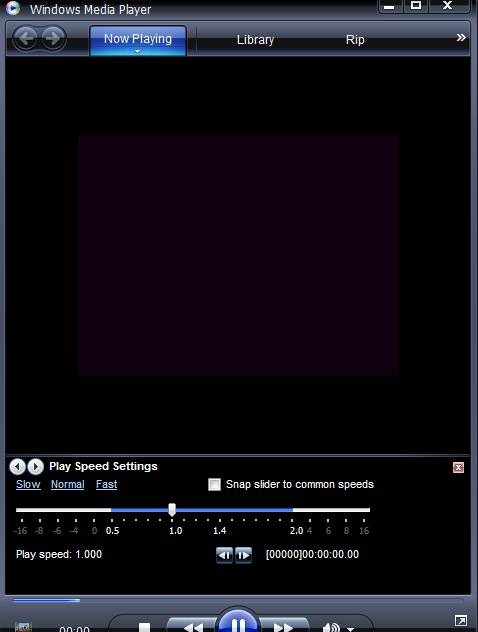
Your WMP should now look similar to the picture below.
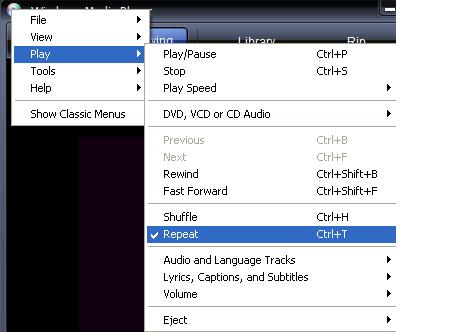
Another nice setting is to allow the WMP to “Repeat” the video. The will cause each video to “loop” once finished. Usually there is about a 3-5 second delay before it starts again. To add this feature select Play>Repeat or Ctrl+T (see image below). On some machines this may cause the video to disappear so use at your own risk.
Quick Reference Keys:
Ctrl + P: Play and Pause
Ctrl + T: Repeat/Loop (Use at your own risk)
Ctrl + Shift + S: Slow
Ctrl + Shift + N:
Ctrl + Shift + G: Fast
Alt + 1: Video size = 50%
Alt + 2: Video size = 100%
Alt + 3: Video size = 200%
If you are going to view multiple videos, don’t close WMP… just go back to your Internet Browser and select another video and it will load in WMP.
If you have any issues with the videos playing, you need assistance, comments, and/or suggestions please call me (Jim Klinger) @ 336-510-6374 or e-mail me @ jim@strokeview.com and of course for more information about StrokeView please visit http://www.strokeview.com
Have Fun StrokeViewing….. GO